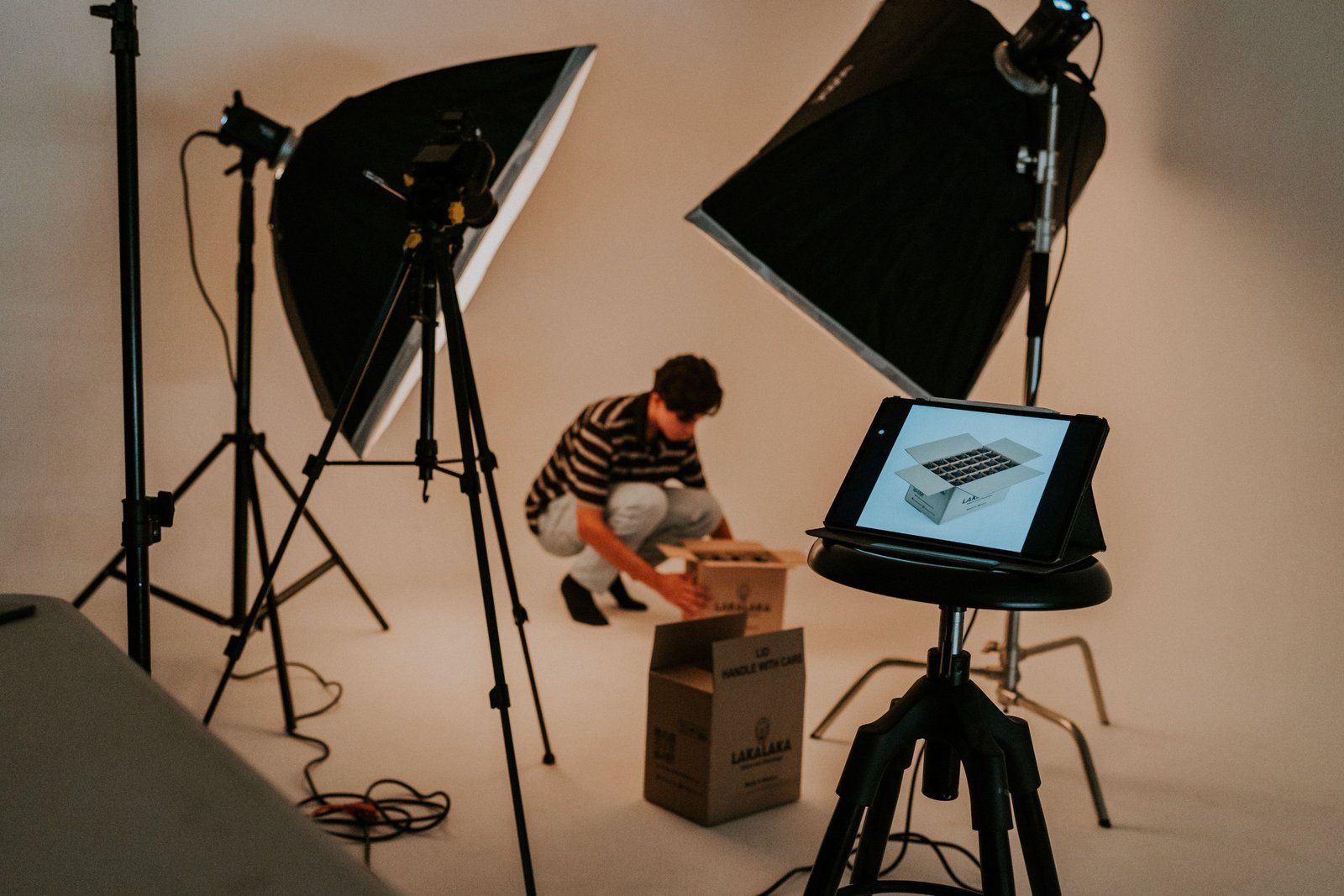
Product images are the first thing that attract on the website. Users visit the online store, they see images and decide whether it is worth spending time reading the description, studying the characteristics, or comparing prices. The quality of images directly affects the confidence of customers and their decision to buy.
Therefore, to ensure that your product presentation meets all the criteria and helps you achieve the best results in sales, you need to know how to prepare product images and what details to pay attention to.
We will discuss all the details of technical requirements and specific recommendations for preparing product images for an online store in 2026. In this guide, you will find many useful things to know about the preparation and optimization of product images.
Ideal Image Size and Resolution
Proper image sizing affects both the aesthetics and efficiency of your website. Using an image that is too small will create a blurry picture and loading with a massive image will definitely take too long.
Now, in 2026, for online stores, it is recommended to use images with a resolution of 1500-2500 pixels for the longest side. This way, it will be possible to display them on a computer screen at the desired size and use the zoom function.
It is also essential to ensure the high quality of images so that the customer can see all the details and read the fine print. In most cases, based on the photo, the buyer determines whether to make the purchase, which means that the image must contain all the necessary information. Only in this way, it will be possible to inspire confidence in the customer and show that there are no concealed details. Meanwhile, pixelated images, the lack of resolution, and pixelation will drive away potential customers and spoil the image of the store.
The file size of the photo is also significant because it should not be too big, so the website's performance does not slow down. Absolutely, because If the page takes too long to load up the user would get impatient and would directly bounce over to the competitor's site, hence resulting into an increased Bounce Rate. And it's really necessary that quality-size balance is being kept.
Another common mistake in the online store's photo editing is different aspect ratios. It is vital to choose standard proportions and follow them when uploading photos of goods. In this way, you will create a uniform look and a more professional appearance of the store. Also if some images in it is a rectangle, and another image in it is a square shape then you'd seem a bit amateur website developer in it.
Compressing Images Without Losing Quality
In online shopping, it is crucial not to keep customers waiting. If a website opens slower than usual and it takes 2-3 seconds longer than normally, many clients will go back. It is especially essential for mobile users since not everyone has a good connection. Therefore, image compression is not only a technical optimization but also a part of customer experience.
One thing I see all the time is that owners of the site do not know when their customers are lost. Most customers will not say why they are not coming to the store, so it could be they left and went to your competitor's store. I remember one clothing store, run by a friend, where all the images were taken using a professional camera. They looked nice but the file size was tens of MB, slowing down the page load speed to a crawl on mobile devices. After compression and optimization, the file sizes dropped considerably, giving visitors a much better experience on the website. The image quality barely dropped from the compression, though.
Many beginners to image compression think that it involves destroying the image. In my experience, this is not the case. The software has become so smart that it often allows you to reduce the file size of an image by a considerable margin without noticing the difference in the quality of the image.
There are so many image compression tools now that even the least technically inclined among us can use them. However, I advise against blindly trusting your computer's built-in options. It's always a good idea to inspect the compressed image to see whether anything of importance was taken out with the quality. It occurs much more frequently than most people imagine, in things like the feel of a fabric, the lustre of a jewel, or the design of the buttons on an electronic device.
Optimizing Product Images for SEO
Product images can often be a traffic-driving powerhouse, not only by being visually appealing for your online store, but also as an avenue of their own! Tips on optimizing your product image to reach that first position in the results are below.
First things first, ensure that all of your images contain correct alt text. Alt text, also known as alternative text, is the description of what your image is about and the way to make pictures easy to crawl by search engines. It is critical to add alt text to all of your pictures uploaded on the site so that you can make your site more searchable. People tend to write simply 'picture of product,' however, you should try to write a more detailed description of a picture for search engines to correctly index your images. For instance, you could write 'black office chair made of leather with adjustable arm rests.'
Another thing that you should do is name your files appropriately. A lot of people do things like "photo1.png" which is not a great idea. Search engines can actually not read the name of your file. This means, we should name the file base on what is actully in the file. As in, instead of doing "photo1.png" you could do something like "black-leather-office-chair.jpg".
Now, these techniques will give your content a nice boost in Google's organic search results, but you can actually turbocharge your images in Google Images as well! This will give you another channel to target and may even get you additional customers.
Users searching for certain products might just stumble upon your image which would then lead them to your website and your product. It's a very simple process, all you have to do is name your files correctly and write some decent alt text for your images.
Platform-Specific Requirements: Shopify, Amazon & Etsy
If you are in the business of selling products on any kind of marketplace, then you are expected to have an idea of the kinds of pictures for product images. As when comes to size, formats, number of pictures, and even background, everything such as Amazon, Etsy, and Shopify have set for themselves.
One marketplace may suggest white background pictures whereas another may require lifestyle photography. Some may emphasize the importance of image resolution due to zoom functionality and mobile-friendly design.
It may become challenging to keep your images compliant if you operate on different marketplaces selling the same goods. In this case, you should edit your photos according to the specifications of every website you post your listings on.
The best way to do it is to prepare master images which would then be edited in accordance with varying rules for different marketplaces.
You may notice that some criteria change constantly. That is why it is important to check again the requirements before you upload new listings.
Pre-Launch Checklist: Final Steps Before Going Live
The last thing before uploading the pictures of the products is something really boring but at the same time it can save a lot of time and errors. If your store contains about 10 or 20 products it is easy to find the errors but what if you have a huge number of products in your store.
Save yourself a headache by going through this quick checklist before publishing.
- Image quality is clear and not pixelated.
- Resolution is appropriate for zooming in without losing quality (large enough).
- Images are compressed in an appropriate format (JPEG, PNG, WebP).
- Backgrounds are consistent and neat.
- Files are named appropriately (no default IMG_001.jpg).
- Alt text is relevant and informative.
- Appears correctly on mobile devices.
- Conforms to the requirements of Shopify, Amazon, Etsy, etc.
- Consistent image sizes and dimensions for cohesive.
Going over this list will help you find the trouble spots and make sure to solve them before publishing.
Conclusion
For the proper display in your catalog, creating the perfect image in terms of its size, format, compression, SEO, and other factors is essential to gain more visibility and profit. Though many are not aware of manipulations that should be performed before uploading photos to a catalog, thus lowering their conversion rate. Let's take a look at what you should do in order to maximize results.
First of all, take a look at existing products – most likely, something can be optimized. Check the quality of images, loading speed, alt tags, file names, and overall compliance with other items in the catalog. Secondly, images always need optimization – their quality, size, and format must meet specific criteria. Otherwise, they will decrease the user experience on the site. It is also worth paying attention to SEO and the correctness of image names, which helps the search engine index the catalog faster and improve ranking. Finally, you should use online resources to edit photos to the necessary parameters and remove the background. For example, the BG Erasers website has many tools that help edit and prepare images for catalog use.